
This one is for the browser on your computer.
Open this page there: life-archive.app/focus-extension – tap it to copy. On your phone, Focus works in the Android app itself, for the browsers there too. On an iPhone: what iOS can do by itself.
Focus · for your browser
Keep chosen sites at a distance – on your computer too.
Focus helps you step away from habits you want to change. The extension takes the blocks you made in Life Archive and holds them in your browser: a calm page instead of the site, a breath before you go on, or the site in grey. It decides on your computer and never sends what you browse anywhere – it only talks to your own Life Archive.
Focus for Firefox is not ready yet.
It is waiting for Mozilla’s signature, and this page offers it as soon as it has one. Until then, Focus works in Edge, Chrome and Brave.
About 3.2 MBNeeds Life Archive with FocusFree
3.2 MBFirefox 140 or newerUpdates by itselfFree
Why it installs from a folder for now
During the closed beta, the extension comes as a ZIP file you unpack once. Once Focus is listed in the browsers’ stores, it installs with one click – until then the browser needs Developer mode, which only lets it load an extension from a folder on your computer. Chrome may remind you about it when it starts; that is expected. Removing the extension is always possible.
Install in five stepsInstall in three steps
About two minutes.About a minute.
-
Add it – and let Firefox continue
Not ready yet – this step works as soon as Mozilla has signed Focus for Firefox.
Add to Firefox. Firefox first asks whether this site may install add-ons: choose Continue to Installation.
Focus is signed by Mozilla, like every add-on Firefox installs. It comes from Life Archive rather than the add-ons site during the closed beta – that is all the question is about.
The small window under the address bar. Its look changes with Firefox versions; the words stay. -
Add – with private windows
Firefox names what Focus may do. Tick Allow this extension to run in Private Windows, then choose Add. Without it, a private window is not covered – Life Archive tells you if so.
In some versions the box comes in the small window right after Add. Later: about:addons › Life Archive Focus › Run in Private Windows › Allow.
Tick the box before Add. The list is what Focus needs to close the sites you chose. -
Connect it in Life Archive
Open Life Archive in Firefox and go to Focus. Choose Connect this browser; a tab of the extension asks once – say yes there. If Life Archive then says Focus can’t see websites, choose Allow access and confirm in Firefox.
Pin the button: the puzzle piece next to the address bar › the gear at Life Archive Focus › Pin to Toolbar. Firefox updates Focus by itself from now on.
-
Download and unpack
Download the ZIP and unpack it into a folder you keep, for example Documents › Life Archive Focus. The browser loads Focus from there – so don’t delete the folder later.
Inside are files like manifest.json and background.js. That folder is the one you choose in step 4.
The unpacked folder. You will point the browser at this folder. -
Open the extensions page
Type edge://extensions into the address bar and press Enter.
Type chrome://extensions into the address bar and press Enter (in Brave: brave://extensions).
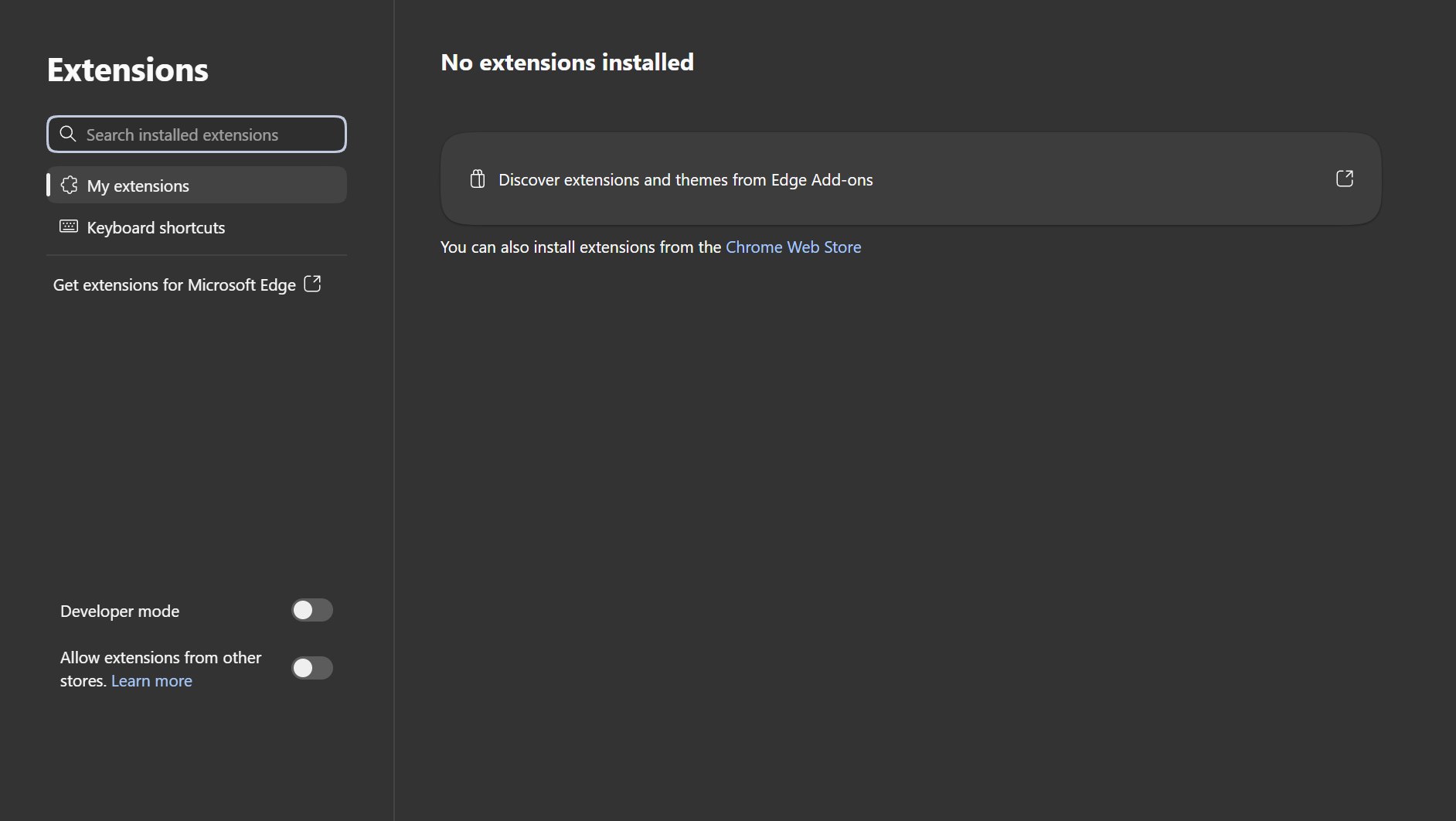
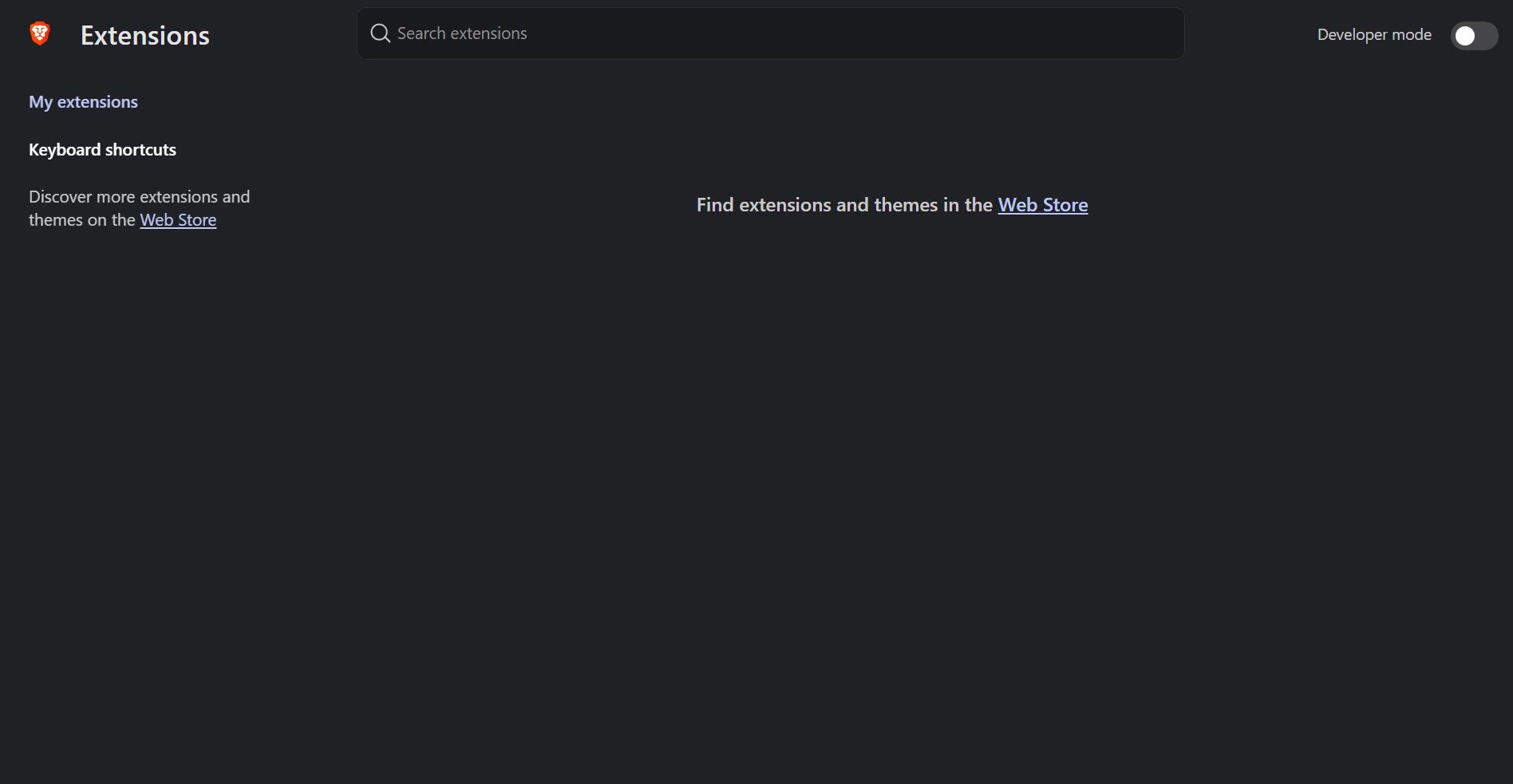
-
Turn on Developer mode
The switch is at the bottom left. Then Load unpacked appears at the top.
The switch is at the top right. Then Load unpacked appears at the top left.
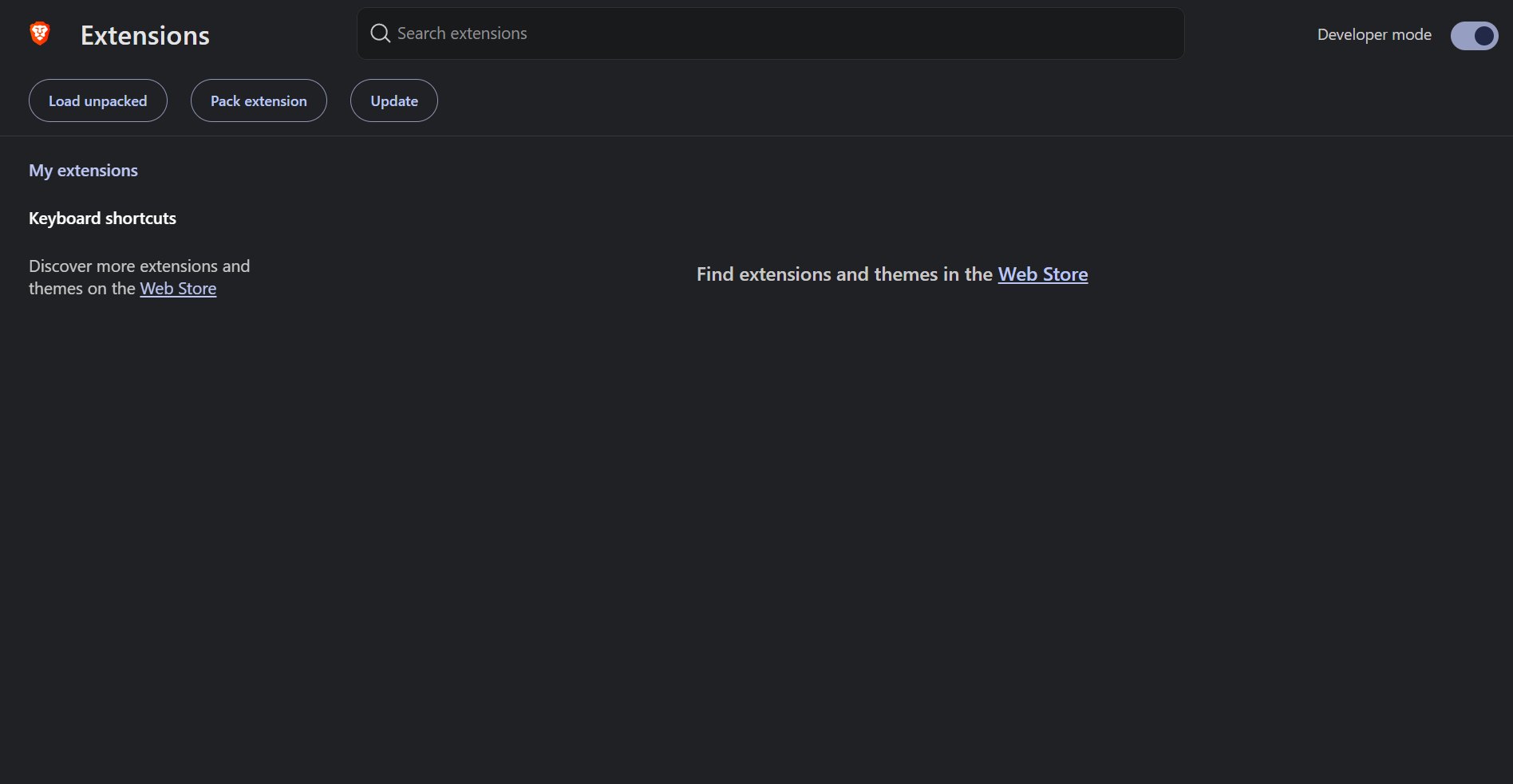
-
Load unpacked – choose the folder
Click Load unpacked and choose the folder from step 1 (the one with manifest.json inside, not the ZIP). Life Archive Focus now appears in the list.
Tip: pin it next to the address bar (the puzzle piece › pin) – the button there shows what holds on the site in front.
-
Connect it in Life Archive
Open Life Archive in the same browser and go to Focus. Choose Connect this browser; a tab of the extension asks once – say yes there. Only you can connect it: a website on its own never can.
From then on your blocks hold in this browser, even while Life Archive is closed, and Focus › Stats shows minutes per site. Nothing you browse leaves the computer.
Good to know
Does the extension send what I browse anywhere?
No. It decides on your computer, with the rules Life Archive gave it. It counts minutes and visits per site for your limits and hands only those numbers to your own Life Archive. It goes online only if you connect it with a code on a computer where Life Archive isn’t open – then it fetches your sealed blocks and sends nothing back – and, if a block holds the content filter, to fetch its public lists.
The content filter
A block can keep a kind of content away – adult content or gambling – instead of single sites. The extension then downloads public lists of such sites from Life Archive’s server, signed by us, once a day (about 8 MB), and checks addresses against them on your computer. At “+ Words” it also closes searches with telling words; at “+ Pages” it reads the words of a page in that tab and turns on the search engines’ safe search. Nothing of this leaves your computer: the page it closes names neither the site nor the kind, and Life Archive only counts how many pages were closed. If it closes something it shouldn’t, “Not what I meant” opens that site again in this browser.
A computer where Life Archive isn’t open (a work laptop)
Install the extension there too. In Life Archive on your phone or another computer, go to Settings › Focus › Browsers on other computers and make a code. In the extension’s button, choose Connect with a code and type it. Your blocks arrive sealed – the server can’t read them – and update by themselves every few minutes.
Private windows
Browsers keep extensions out of private windows unless you allow it. In Firefox: about:addons › Life Archive Focus › Run in Private Windows › Allow. In Edge, Chrome and Brave: open the extension’s Details and turn on Allow in InPrivate or Allow in Incognito. Life Archive tells you when private windows are not covered.
How do I update it?
In Firefox you don’t: it updates by itself, signed by Mozilla each time. In Chrome, Edge and Brave, download the ZIP again, unpack it over the same folder and press Reload on the extension in the extensions page. The store versions will update by themselves.
Firefox: “Focus can’t see websites”
Firefox lets you take an extension’s access to websites away. Focus then can’t close a site or show its page, so Life Archive turns its card amber. Choose Allow access there, or in about:addons › Life Archive Focus › Permissions, turn on Access your data for all websites.
Several Firefox profiles
Each profile has its own add-ons. Add Focus and connect it in every profile you use – Life Archive lists each one as its own browser.
Zen, LibreWolf, Waterfox, Floorp
They are built on Firefox and usually take the same file. We test in Firefox itself; a browser that only allows add-ons from the add-ons site will refuse it until Focus is listed there.
A work computer that refuses the add-on
Companies can block add-ons for their computers. Then only whoever manages the computer can allow it – Focus doesn’t try to get around that.
Can I remove it during a strict mode?
Yes, always – Focus is there because you asked for it. Life Archive then shows that this browser is no longer covered, and your blocks keep holding on your other devices.
Safari
Safari will get Focus inside the iPhone and Mac apps.